Ask and You Shall Receive
skip render: ucaddon_dual_color_heading Why AI is So Affordable Right Now Construction AI Lab helps busy construction professionals stay ahead of


Construction AI Lab is a no cost sudyco® initiative focused on understanding how AI is actually showing up across the construction industry—what’s being used, what’s working, what’s not, and what’s coming next.
Lost in Translation
How AI Turns a Spanish Voice Note Into a Finished English Field Report
Dear Sue,
I run a construction business where most of our field crew members speak Spanish and struggle to complete forms in English that we can understand. Can AI help?
— Lost in Translation
Phase 1 - Setting UP the Phone (One Time Only)
This setup takes about five minutes and only needs to be done once per phone. After that, the worker is ready to go every day.
iPhone
1. Open Settings on the iPhone.
2. Tap General → Keyboard → Keyboards → Add New Keyboard.
3. Choose Spanish.
4. Go back to the main Keyboard screen. Confirm Enable Dictation is turned on.
5. Tap Dictation Languages and check Spanish.
Android (Gboard)
1. Open Settings.
2. Tap System → Keyboard or Languages & input (wording varies by phone model).
3. Tap On-screen keyboard → Gboard → Languages → Add keyboard.
4. Choose Spanish, pick a layout, tap Done.
5. Back in Gboard settings, tap Voice typing and turn on Use voice typing.
6. Allow microphone permission if the phone asks.
That’s it for setup. The phone now accepts spoken Spanish in any notes app.
Phase 2 - Field Note — Speak It, Translate It, Send It
The Shift That's Actually Coming
Use this every day to capture the daily field report. The key is the same information, in the same order, every time — that consistency is what makes it useful on the office end.
Step 1 — Record the note
1. Open the Notes app (iPhone) or Google Keep (Android). Open a new note.
2. Switch to the Spanish keyboard.
iPhone: tap the globe icon on the keyboard until Spanish appears. Android: tap the language key on the toolbar and select Spanish.
3. Tap the microphone and speak the field note in Spanish. Short, clear sentences. Start with the project name.
4. Stop dictation. Review the note and fix any obvious errors.
Step 2 — Translate and fill the form
5. Tap and hold in the note, then choose Select All → Copy.
6. Open your AI tool — Claude (claude.ai) or ChatGPT (chatgpt.com). Both are free to sign up. Claude tends to follow structured formatting prompts more precisely, which matters when you need the form fields to come back clean and consistent every time. Either way, a free account is all you need.
7. Paste the Spanish note, then add the prompt below.
8. Review the English result and confirm it is accurate.
9. Copy the completed form and share it with your Project Engineer, Office Manager, or Boss to enter into the company system.
Use this exact prompt:
Translate this Spanish field note into clear professional English. Keep the meaning accurate. Then organize it in this exact format: Project Name, Date, Location, Client, Supervisor, Crew Size, Hours Worked, Travel Time, Work Performed, Materials Used, Equipment Used, Issues/Delays, Safety Items, Tomorrow’s Plan.
The Form That Comes Back
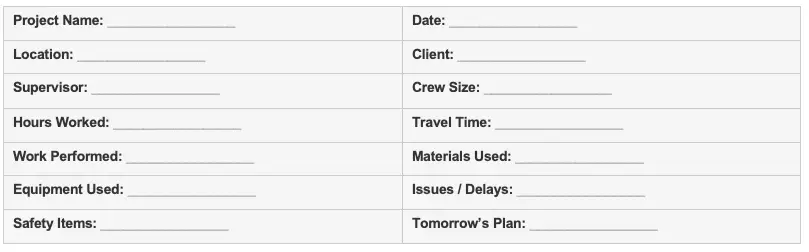
What to say when recording
• Say the project name first, every time.
• State hours, breaks, and travel time clearly and separately.
• Describe work performed in plain task language.
• Call out delays, problems, and safety items separately.
• End with what needs to happen tomorrow.
• Short, clear sentences — the phone and the AI handle the rest.
Phase 3 - Timecard — Speak It, Translate It, Send It
Same workflow, different form. Timecards need employee identity, project, exact start and end times, breaks, and hours broken out by regular and overtime. Give the AI that information and it fills the form.
Step 1 — Record the timecard
1. Open Notes or Google Keep. Open a new note.
2. Switch to the Spanish keyboard and tap the microphone.
3. Speak the time card information in Spanish. Start with your name and employee number.
4. Review the note and fix any obvious errors.
EXAMPLE — WHAT TO SAY IN SPANISH
Mi nombre es Carlos Ramirez. Mi número es 214. La fecha es 14 de abril de 2026. Proyecto Oak Street. Cost code concrete repair. Empecé a las 7:00 a.m. Almuerzo de 12:00 a 12:30. Descanso de 3:00 a 3:10. Terminé a las 4:30 p.m. Tuve 30 minutos de viaje. Trabajé ocho horas regulares y una hora de overtime. Hicimos reparación de concreto y limpieza del área. Supervisor José Martinez. Sin otros comentarios.
Step 2 — Translate and fill the form
5. Tap and hold → Select All → Copy.
6. Open Claude or ChatGPT.
7. Paste the note, then add the prompt below.
8. Review the English result. Confirm that times and hours are correct.
9. Copy the completed time card and share it with your Project Engineer, Office Manager, or Boss for entry into the payroll system.
Use this exact prompt:
Translate this Spanish time card note into clear professional English. Keep the meaning accurate. Then organize it in this exact format: Employee Name, Employee ID, Date, Project Name, Cost Code, Start Time, Lunch Start, Lunch End, Additional Breaks, End Time, Travel Time, Regular Hours, Overtime Hours, Work Performed, Supervisor, Employee Notes.
The Form That Comes Back
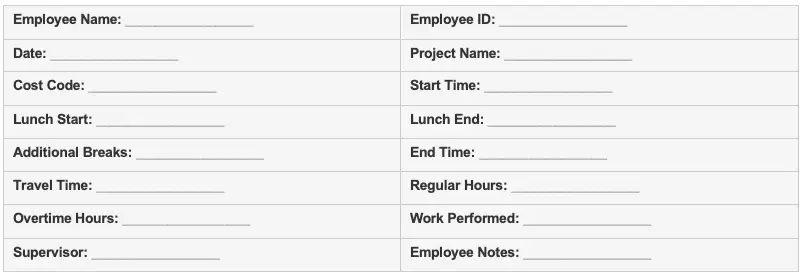
What to say when recording
• Say your name and employee ID first.
• State the date clearly.
• Speak start time, lunch, breaks, and end time separately.
• State travel time if it must be recorded.
• Mention overtime separately from regular hours.
• Describe work in one or two simple sentences.
If the Phone Isn’t Cooperating
• Microphone types English instead of Spanish: Switch the keyboard to Spanish (globe icon on iPhone, language key on Android) before tapping the mic.
• Dictation not available: Go to Settings and confirm Enable Dictation is on (iPhone) or Use Voice Typing is on (Android).
• Spanish still not recognized: iPhone — check Dictation Languages and confirm Spanish is selected. Android — confirm the Gboard Spanish keyboard was saved.
• Too many transcription errors: Slow down, use shorter sentences, and speak in a quieter spot.
• Android mic icon missing: Confirm Gboard is the active keyboard, not a different keyboard app.
I hope this workflow helps make communication between your field crews and office a little easier. If you try it, I'd love to hear how it works for your team—or what AI challenge you'd like me to tackle in a future issue.
Until next time,
— Sue
Did this help you? Have a question? Or willing to share how you're using AI in the field? Let us know — and your question or story may be featured in a future issue of Construction AI Lab. Email: [email protected] | Subject line: Dear Sue
ABOUT THE AUTHOR
Sue Dyer is the founder of Construction AI Lab, where she shares simple, practical ways construction professionals can use AI to save time, reduce frustration, and run better projects. Contact: [email protected]
This publication is provided for educational and informational purposes only and does not constitute legal, cybersecurity, technical, or professional advice. Organizations should evaluate their own operational, legal, security, and governance requirements when implementing AI technologies. AI systems, policies, and industry practices continue to evolve rapidly. Construction AI Lab and sudyco® make no guarantees regarding specific outcomes, compliance, or risk mitigation associated with the use of AI technologies.
Built for the Industry. Meant to be Shared. You Have Our Permission.
© 2026 Construction AI Lab, an initiative of sudyco®